🎨🖥 Processing & Functions 🎨🖥
Processing provides you with a platform to express your creativity in a digital canvas. At the heart of it all, you have functions that play distinct roles. Let’s take a closer look.
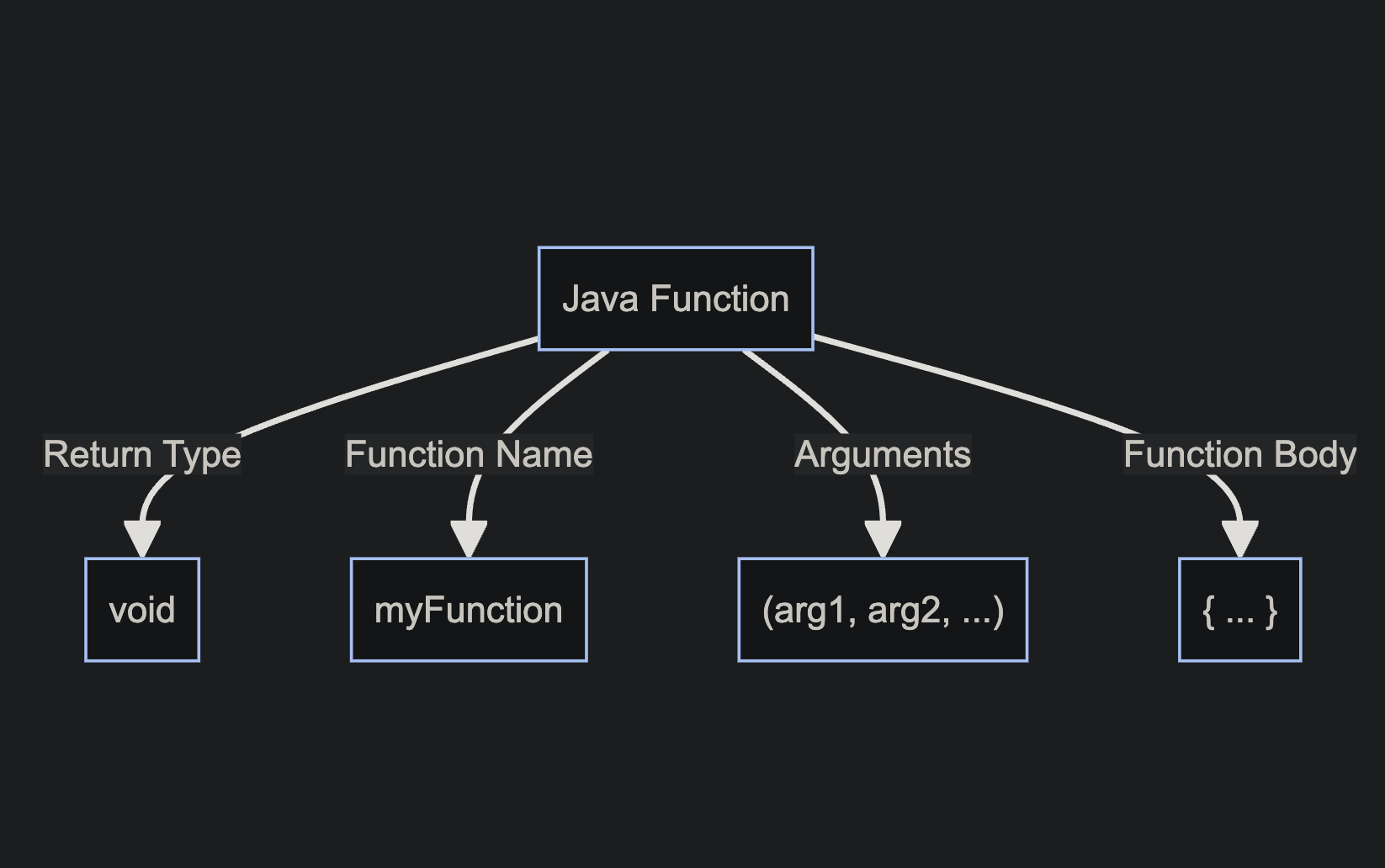
All of these come together to look like so
void dogBark(){

function code goes here

}
A function operates like a mini-program within your main program. It allows you to bundle code, assign it a name, and utilize it multiple times. Visualize a magic box 🎁 that performs a task every time you invoke it.
👾 Functions Guide 👾
Objective
- To create and use your own custom methodsWhen you're just starting, remember that it's okay if things don't make perfect sense right away. With time and practice, it'll become second nature! And the most important thing is to have fun experimenting and creating with Processing.
Functions
Imagine Functions as Magic Boxes 🎁 You know those magic boxes in fairy tales where you put something in, whisper a magic word, and get something totally different or amazing out? That's exactly how functions in Java (and most programming languages) work!The Name of the Function 📛
Every magic box (function) has a name. This way, you can tell it apart from other magic boxes. So, if you have a magic box that turns apples into gold, you might call it `turnApplesToGold`.Using a Function 🪄
To use a magic box (or function), you simply say its name and give it what it needs (if it needs anything). This is called "calling the function."Example:
turnApplesToGold();
Void Setup
void setup() is a special function that sets the initial state of our canvas.
👾 Explained 👾
Think of it as the first step where you lay out all your tools and prepare your drawing space.
Preparing Your Sketchbook
void setup() In Processing, the function
void setup() - Set the size of your canvas using the function
size()background()Example
  void setup() {
      size(400, 400);          // Set canvas size to 400 pixels by 400 pixels
      background(255, 0, 0);   // Set background color to red
    }
Void Draw
Continuously Drawing on Your Canvas. The void draw() function is like the act of drawing on that prepared sketchbook page.
👾 Explained 👾
void draw()But there's a twist! Whatever you put inside void draw() happens over and over again, almost like you're drawing, erasing, and redrawing repeatedly super fast (typically 60 times per second). This makes it perfect for animations, games, or any interactive programs where things change over time.
Inside void draw(), you can: - Draw shapes (like circles, rectangles, lines, etc.). - Check for user inputs (like mouse clicks or key presses). - Update positions of objects for animations. - Change colors, sizes, or any other properties of your drawings.
Example
    void draw() {
      background(220);         // Set a gray background every frame
      ellipse(mouseX, mouseY, 50, 50);  // Draw a circle at the mouse position
    }
Give the code example a try!
Here, the ellipse() function draws a circle. The
mouseX and mouseY
are special variables that always store the current position of the mouse. Since draw() is running over and over, the circle will appear to follow your mouse as you move it around the canvas!
Lab: Custom Functions and User Input in Processing
Lab Instructions:
In this lab, you will be creating custom functions to enhance the interactivity of your sketch in Processing. One of these functions will generate a random color, while the others will utilize user input.
👾 Lab Guide 👾
0. Structure your sketch by using - `void setup()`: This function is called once when the program starts. Use it to define initial environment properties. - `void draw()`: This function is continuously executed and is used to run the code inside it repeatedly. 1. **randColor() Function:** Before proceeding, ensure that you have developed a custom function named `randColor()`. This function should generate and return a random color that can be applied to a shape. 2. **User Input Functions:** Create three additional custom functions in your sketch that make use of user input. You can decide the purpose and functionality of these functions, but they should be interactive and meaningful. Your sketch should include and customize the following: - `mousePressed()`: This function is called once after every time a mouse button is pressed. - `mouseReleased()`: This function is called once every time a mouse button is released. - `keyPressed()`: This function is triggered once every time a key is pressed. **Note:** While customizing the above functions, ensure that they are interactive and align with the theme or purpose of your sketch.
Arguments = Ingredients 🍎
Sometimes, the magic box needs something from you to work. These are called “inputs” or “arguments”. Imagine you have a function that makes juice. You have to give it fruits, right?
    void makeJuice(String fruit) {
        // Magic happens here!
    }
👾 Custom Functions Guide 👾
Here, `fruit` is what you give the function. So, if you want apple juice, you'd use call the function like this:
makeJuice("apple");
Inside the Function 🎩✨
Inside the Function, there are instructions about what to do with what you gave it. These instructions are the lines of code inside the function, and we refer to this as defining the funciton.Function Output ✨
Sometimes, the function gives you something back. Like, you put in an apple and get out juice. In Java, we decide what kind of thing we're going to get back using words like `int`, `String`, etc. If a function doesn't give anything back, we use the word `void`.For instance, if our juice-making magic box gives back juice, it might look like:
String makeJuice(String fruit) {
    // Magic happens here!
    return "juice"; // This is what you get back!
}
Using a Function 🪄
To use a magic box (or function), you simply say its name and give it what it needs (if it needs anything). This is called "calling the function."Example:
String myJuice = makeJuice("apple");
🌍 What is Scope? 🌍
Scope acts as an invisible barrier ⛩️ around segments of your code. Variables (like x = 5) exist within these boundaries. In programming, the term “scope” refers to the part of the code where a variable or function is accessible. Think of it as the “reach” or “visibility” of a variable or function.
👾 Scope Guide 👾
Types of Scopes in Java 🧐
Imagine you have a secret diary that you only read in your room. Within your room, you can read it anytime (this is its "scope"). However, when you're in the living room, you can't access it because it's out of its "scope" or reach. In a similar way, in programming, variables and functions have places where they can and cannot be accessed.
Local Scope (or Block Scope)
Variables defined inside a method, constructor, or block are said to be in the local scope. They are accessible only within the method or block where they are declared.
   public void showName() {
       String name = "Alice"; // This is a local variable
        // Outside the method {}, 'name' is not accessible.
       System.out.println(name);
   }
Global (or Class) Scope
When a variable is declared at the class level (but outside any method), it's accessible from any method in the class (unless it's private and you're trying to access it from outside the class). These are often referred to as class or member variables.
   public class MyClass {
       String globalVar = "I am global!"; // This variable has class scope
            public void showGlobalVar() {
               System.out.println(globalVar); // Accessible here
           }
       public void anotherMethod() {
           System.out.println(globalVar); // Also accessible here
       }
   }
Package Scope (Default Scope in Java)
If a class, method, or variable doesn't have a specific access modifier (like `public`, `private`, or `protected`), it's accessible only within its own package. This is the default scope in Java.Protected Scope
When a member is declared as `protected`, it can be accessed within its own package and by subclasses.Public Scope
When a member is declared as `public`, it can be accessed from any other class in any package, assuming the class it resides in is also accessible.Remember, understanding scope is crucial because it helps you manage data and control what parts of your program can and cannot see or modify that data. Proper scoping ensures cleaner, more readable, and more maintainable code.